
By Shash7. Posted under guides Posted on 10th Nov, 2026
By Shash7. Posted under guides Posted on 10th Nov, 2026
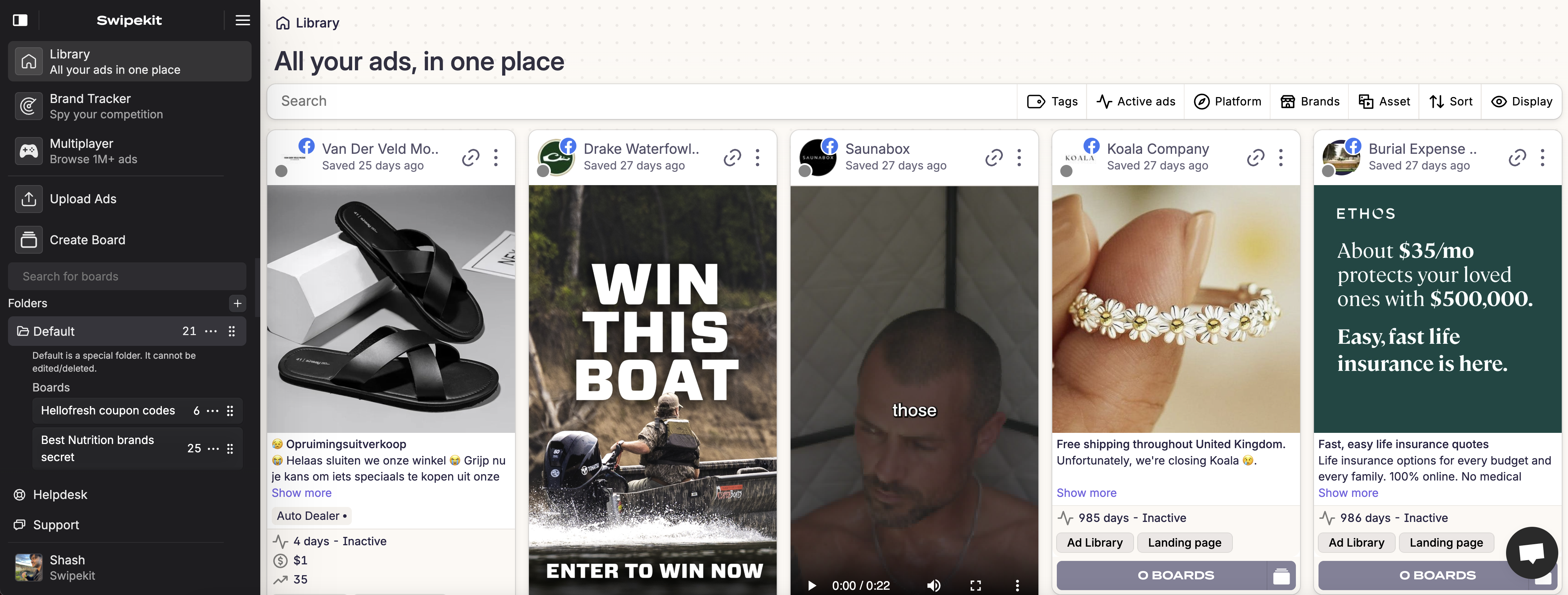
Your saved ads can help you brief an AI image or video. You might like how one ad demonstrates a product or introduces an offer.
Connect Swipekit and a Kie.ai MCP server to Claude Desktop to use those references in your next brief. Swipekit supplies the research, Claude helps write the brief, and Kie.ai generates the media.
For instance, study how ads introduce a travel bag, then brief an original packing demonstration for your product.
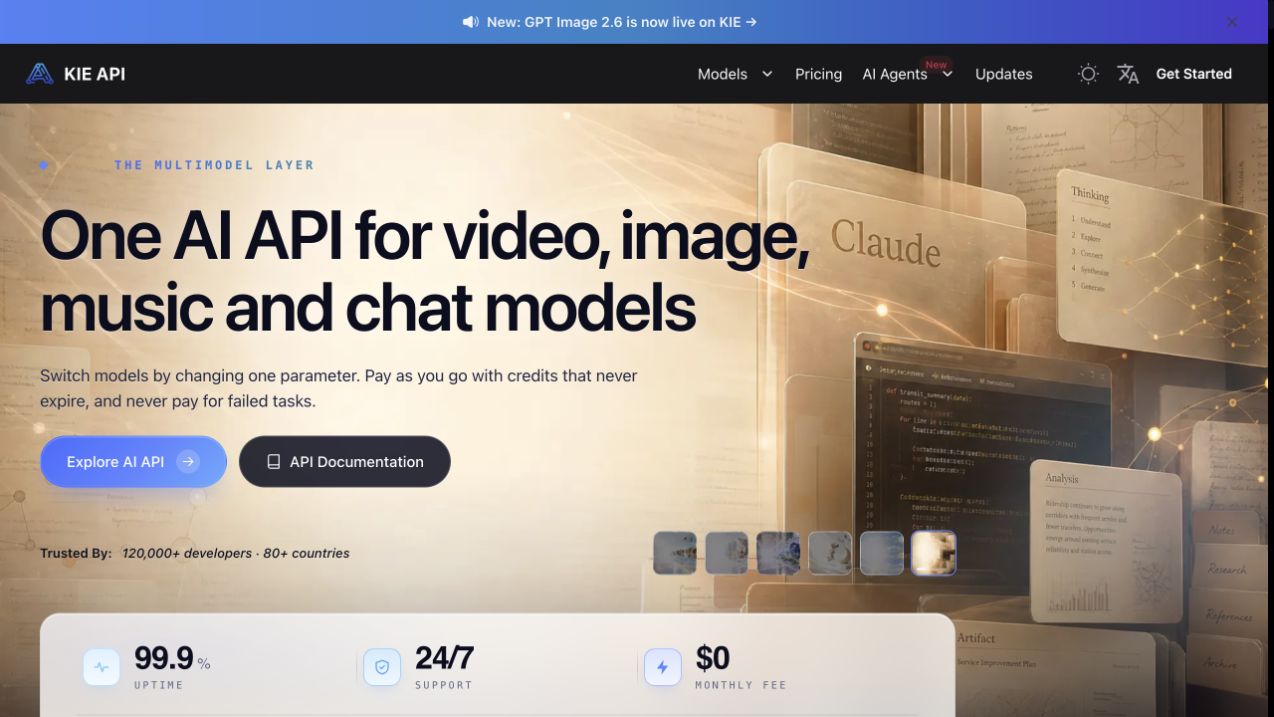
Kie.ai provides models through one API and credit balance. Available tools depend on your MCP server. Check Kie.ai's getting-started guide and the server's supported models before choosing one.
You'll use Claude Desktop to run a local MCP server.
You'll need:
You'll use @felores/kie-ai-mcp-server, a community project. Review its setup instructions before installing.
Connect each service separately. Your assistant uses Swipekit research to prepare Kie.ai requests.
If your client asks for a server URL, Swipekit uses:
https://api.swipekit.app/mcp
Our Swipekit connection guide covers workspace permissions. Check your connection:
Use Swipekit to list my boards and tracked brands.
The Swipekit MCP ad analysis guide has more prompts.
Create a key at Kie.ai's API key page and check your credit balance.
Keep the key in your local configuration. Don't paste it into chats or share screenshots containing it. Kie.ai's API setup guide covers keys and pricing.
Install Node.js if needed. Check the version in a terminal:
node --version
Open Claude Desktop's Settings, choose Developer, and select Edit Config. The MCP local server guide shows the file location.
Add kie-ai to your existing mcpServers object. Use the full example for an empty configuration. Keep your existing server entries.
{
  "mcpServers": {
    "kie-ai": {
      "command": "npx",
      "args": ["-y", "@felores/kie-ai-mcp-server"],
      "env": {
        "KIE_AI_API_KEY": "YOUR_KIE_AI_API_KEY"
      }
    }
  }
}
Replace YOUR_KIE_AI_API_KEY with your key. Save the file, fully quit Claude Desktop, and reopen it. The package's quick start covers this configuration.
Open a new chat with Swipekit and your local Kie.ai tools enabled. Ask your assistant:
Use Swipekit to list my boards.
Show which image and video tools my Kie.ai MCP connection exposes.
If a task-history tool is available, list its recent tasks.
Do not generate anything yet.
Your task list may be empty at first. You'll see only tasks your server has created or checked.
If you can't see the tools, check your JSON and Node.js installation, then restart Claude Desktop. If generation fails, check your API key and Kie.ai credits.
The command and args configuration runs locally in Claude Desktop. Other apps need local MCP support to use it.
To use ChatGPT, you'll need a remote deployment or supported tunnel with compatible authentication. The project's HTTP deployment guide covers hosting. OpenAI's custom MCP guide covers connection requirements. The local JSON alone does not connect ChatGPT.
If you'd prefer a hosted connection with account sign-in, our Higgsfield MCP and Swipekit guide covers Claude and ChatGPT.
Start with a research task and a draft:
Add your product details and ask Claude to work in stages:
I'm creating an ad for [product] for [audience].
The offer is [offer]. The key product benefit is [benefit].

Use Swipekit to find up to 10 saved ads about [topic or brand].
Show the source links and summarize hooks, offers, and formats.
Flag any media or information you cannot inspect.

Propose three original concepts for my product.
Use only the product claims I've provided.
Wait for me to choose one.

Check which Kie.ai models and tools support that concept.
Prepare one generation using the model's supported settings.
Ask for product references and explain how to upload them.
Show the estimated cost if available. Flag unknown costs.
Wait for my approval before submitting the generation.

Check the task status and return the finished media link.
Ask your assistant to upload your product references using the server's supported method. You may need to upload chat attachments separately before generating.
Start with a draft, then ask your assistant for changes.
Your files do not sync automatically between Swipekit and Kie.ai. Download your result, then select Upload ads in Swipekit to keep it with your references. See the upload guide for the steps.
Use competitor ads to find ideas you can test. Their visibility and running time do not reveal CPA or ROAS.
For a routine, start with our competitor ad research guide. The Academy's ad creative explainer covers what belongs in your brief.
Save winning ads from every major library, keep the full context, and turn scattered inspiration into reusable creative direction.
Start free trial

AG1 by Athletic Greens
Meet Your New Supplement Routine ✅

Feel Reformed

Upgrade your Matcha


HEC Wellness Center

AG1 by Athletic Greens
Meet Your New Supplement Routine ✅
Feel Reformed
Upgrade your Matcha
HEC Wellness Center
 Try Swipekit