By Shash7. Posted under guides Posted on 10th Nov, 2026
By Shash7. Posted under guides Posted on 10th Nov, 2026
You find an ad worth saving, then open a blank prompt box to make something for your brand. It helps when your chat app can see your research.
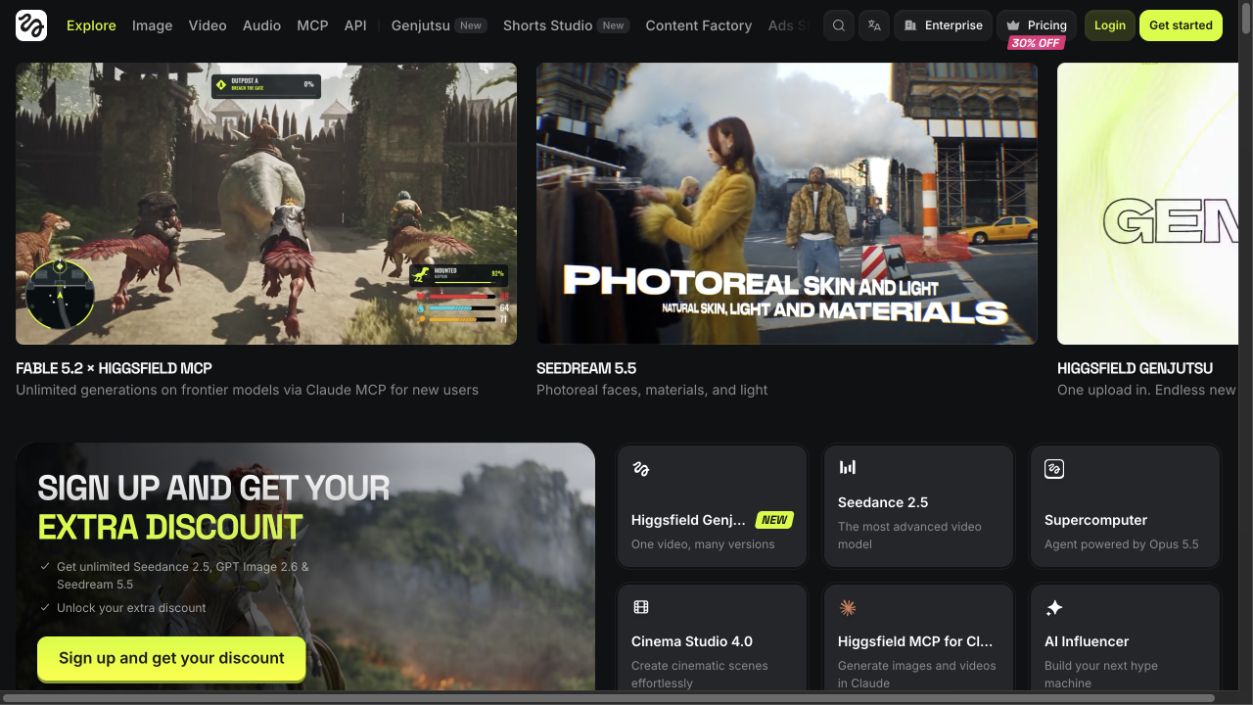
Connect Higgsfield MCP and Swipekit to Claude or ChatGPT to turn that research into images or videos. Your assistant can pull ads from Swipekit, help write an original brief, and generate media through Higgsfield.
Keep your references and creative decisions in one chat. Point to an ad, explain what caught your eye, and develop your idea.
For instance, if you sell refillable hand wash, study how ads introduce a benefit, then plan a sink-side demonstration for your product.
Connect each service to your chat app separately. Our Swipekit MCP ad analysis guide covers the research stage.
You'll need an active Swipekit workspace, a chat app that supports the connectors, and a paid Higgsfield subscription. Your generations use Higgsfield credits. Check its connection and billing guide before starting.
Have your product description, audience, offer, and product photos ready.
MCP stands for Model Context Protocol. It lets your chat app use Swipekit and Higgsfield tools after you connect your accounts.
Use Claude on the web or Claude Desktop.
Swipekit's MCP URL is https://api.swipekit.app/mcp.
https://mcp.higgsfield.ai/mcp
These steps follow Higgsfield's official MCP setup guide.
Ask your assistant:
Use Swipekit to list my boards.
Then use Higgsfield to check my credit balance.
Do not generate media yet.
Check that Claude calls both services' tools and returns your account data. If you're missing tools, check your enabled connectors or reconnect.
Use ChatGPT in your browser. Your workspace must allow custom MCP plugins.
https://api.swipekit.app/mcp and choose OAuth.@ and select Swipekit.OpenAI's custom MCP server guide covers plugins and workspace restrictions.
Open Higgsfield's ChatGPT connection page and choose Add Higgsfield in ChatGPT. Sign in and authorize the connection.
Enable both services in your chat and try the prompt above. Ask Swipekit for ad research and Higgsfield for generation.
Start with an idea for your product:
Replace the brackets with your details:
I'm making an ad for [product] for [audience].
Our offer is [offer]. Our brand tone is [tone].

Use Swipekit to find up to 10 saved ads for [brand or topic].
Show the source links and compare hooks, offers, and formats.
Use only accessible details and flag anything you cannot inspect.

Suggest three original concepts for my product.
Link each concept to its references and explain what we'd change.
Wait for me to choose a concept.

Prepare a Higgsfield brief using my product photos.
Ask me to upload references through Higgsfield.
Suggest an available model and settings. Show the credit cost if available.
Wait for my approval before generating a draft.
Ask your assistant to open Higgsfield's upload window, upload your product image, and wait for confirmation. A chat attachment alone does not send your file to Higgsfield. See its integration guide for help.
Review your draft, then ask for a change, such as a closer product shot or another opening scene.
An ad's running time can help you choose references. It does not reveal sales, CPA, or ROAS. Test your ideas against your campaign results.
You'll find your Higgsfield outputs in Assets. Download your files, then select Upload ads from Swipekit's top-left plus menu. Our upload guide covers the steps. Swipekit MCP cannot import generated files.
For your next session, start with our competitor ad research guide. The Academy's ad creative explainer covers what belongs in your brief. Prefer Kie.ai? Follow the Kie.ai MCP and Swipekit guide.
Save winning ads from every major library, keep the full context, and turn scattered inspiration into reusable creative direction.
Start free trial

AG1 by Athletic Greens
Meet Your New Supplement Routine ✅

Feel Reformed

Upgrade your Matcha


HEC Wellness Center
AG1 by Athletic Greens
Meet Your New Supplement Routine ✅
Feel Reformed
Upgrade your Matcha
HEC Wellness Center
 Try Swipekit