
By Shash7
Use this guide to create an API key and make your first request to the Swipekit API.
The API lets you pull your Swipekit data directly into your own tools, dashboards, and automations.
Your key is used as a Bearer token and looks like sk_xxxxxxxxxxxxxxxx.
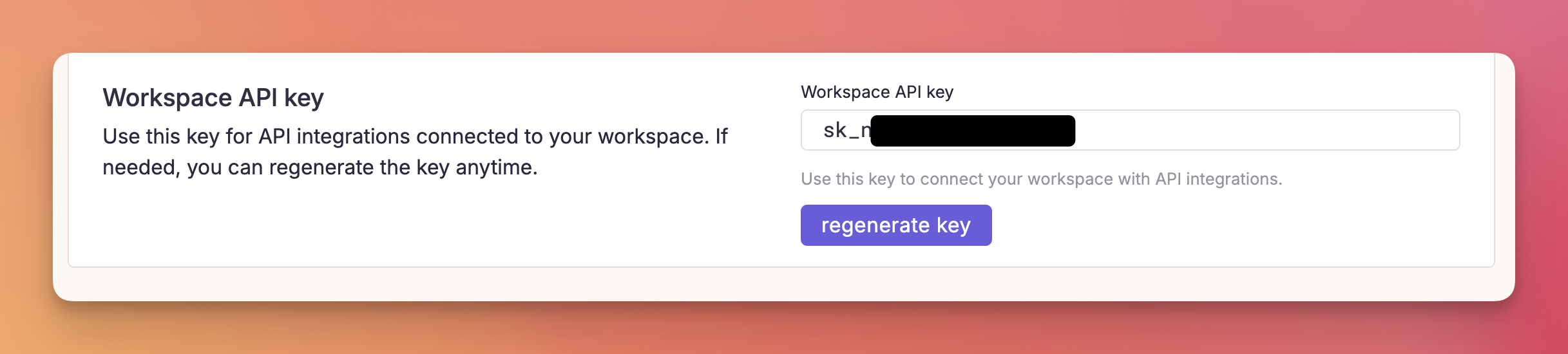
Use your API key in the Authorization header.
curl "https://api.swipekit.app/api/v1/library?page=1&take=10" \
  -H "Authorization: Bearer sk_your_api_key"
You can use the same header for all endpoints in the docs:
Example:
curl "https://api.swipekit.app/api/v1/usage" \
  -H "Authorization: Bearer sk_your_api_key"
401 Unauthorized: check that your key is correct and sent as Authorization: Bearer ....403 Forbidden: your workspace or key may not have access to that resource.429 Too Many Requests: slow down request rate and retry.Save winning ads from every major library, keep the full context, and turn scattered inspiration into reusable creative direction.
Start free trial

AG1 by Athletic Greens
Meet Your New Supplement Routine ✅

Feel Reformed

Upgrade your Matcha


HEC Wellness Center

AG1 by Athletic Greens
Meet Your New Supplement Routine ✅
Feel Reformed
Upgrade your Matcha
HEC Wellness Center